
This article will show how to install the very popular Chinese Go server Fox Weiqi on Windows and MacOS (works on pre-2020 Intel MacBooks and recent ARM Apple Silicon MacBooks) without a virtual machine.

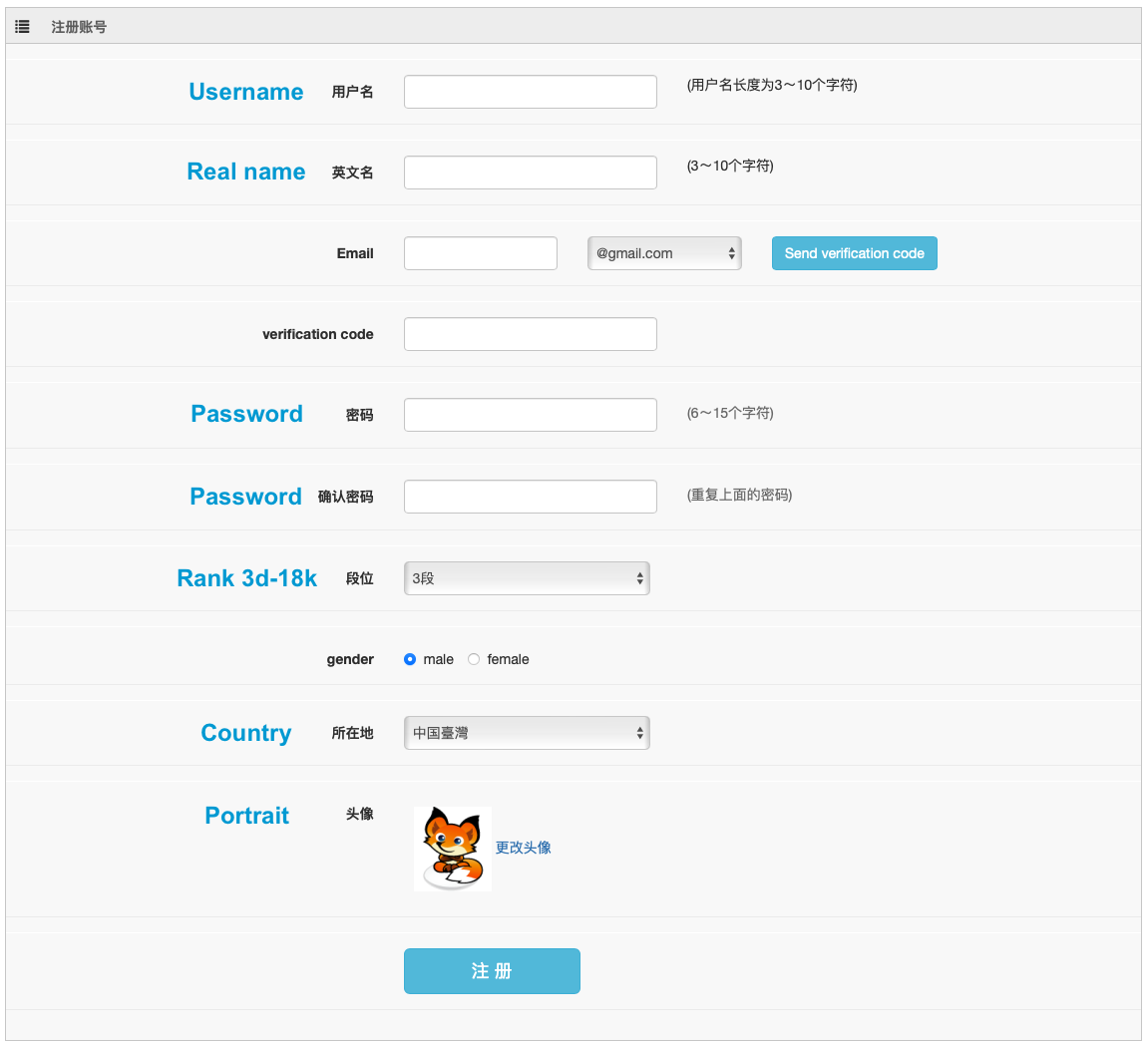
Creating a fox account
You can create a fox account here: https://account.foxwq.com/reg/foreign.html
You can download the fox weiqi installer from https://www.foxwq.com/soft/foreign.html
Installing Fox Weiqi on Windows
For Windows you can just install it like any regular software and start playing. 😆
Installing Fox Weiqi on MacOS
For MacOS we will run the Fox Weiqi application through the Wine software which offers a compatibility layer, which allows us to run Windows applications on MacOS or Linux.
We will install Wine on MacOS through the brew package manager. If you don’t have brew already installed, install it first.
Open a terminal (Applications/Utilities/Terminal) and execute:
/bin/bash -c "$(curl -fsSL https://raw.githubusercontent.com/Homebrew/install/HEAD/install.sh)"
This will install brew, once installed execute:
brew install --cask wine-stable
which will install wine, and:
brew install winetricks
to install winetricks.
If not already done, download the fox weiqi installer from https://www.foxwq.com/soft/foreign.html. We will install the Fox Weiqi application in a « foxweiqi » directory within the home directory (« /Users/your_username »). Execute:
WINEPREFIX=~/foxweiqi wineboot
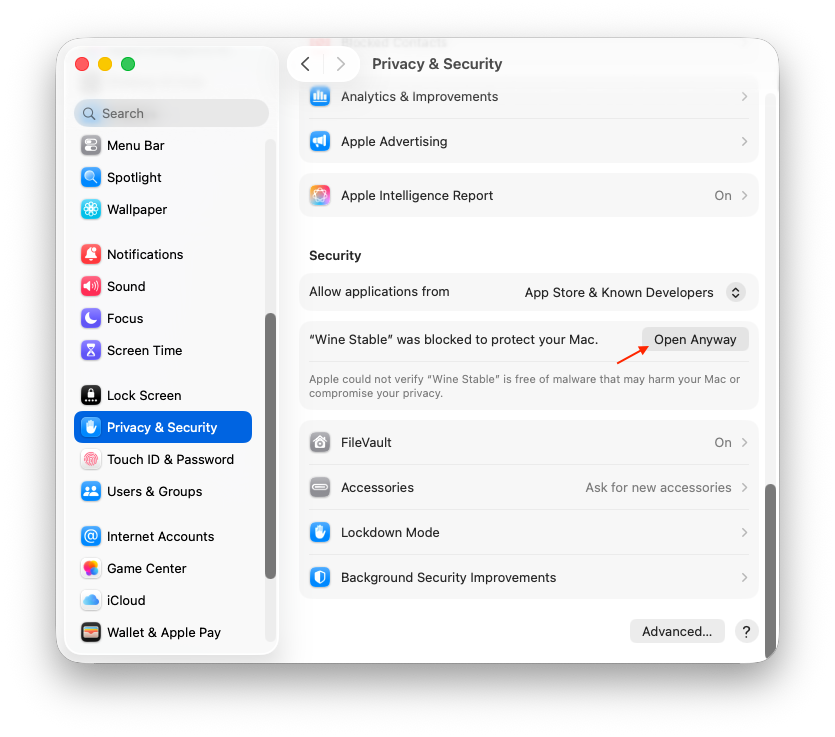
Which will create the « foxweiqi » directory inside your home directory « ~/ » i.e., « /Users/your_username ». This might refuse to open wine-stable for security reasons, in your settings under « Privacy & Security » click « Open Anyway ». After which you can launch the above command again.
Then install the necessary fonts (Chinese, Japanese, Korean, “cjk”), this will make most characters appear correctly, although not all of them, if you have a better solution feel free to share, for this execute:
WINEPREFIX=~/foxweiqi winetricks cjkfonts
Now we will install Fox Weiqi from the install.exe you downloaded (here it is assumed to be located in « ~/Downloads »), adapt the path if necessary:
WINEPREFIX=~/foxweiqi wine ~/Downloads/install.exe
Click « Install now » and wait for it to finish.
Note: If you are runnning an Apple Silicon Mac (2020 and more recent). There is an incompatibility issue with an old (2012) 32-bit web library used by Fox which makes the app crash. It should be disabled with the command below. (This will disable the integrated web browser in Fox, therefore some features are missing, like the shop and announcements in the bottom right of the main window, however the app will not crash constantly and still allow you to play).
# Only for Apple Silicon Macs (2020+)
cp ~/foxweiqi/drive_c/Program\ Files\ \(x86\)/foxwq/foxwq/node.dll \
~/foxweiqi/drive_c/Program\ Files\ \(x86\)/foxwq/foxwq/node.dll.bak
# Then (also only for Apple Silicon Macs (2020+))
truncate -s 0 ~/foxweiqi/drive_c/Program\ Files\ \(x86\)/foxwq/foxwq/node.dll
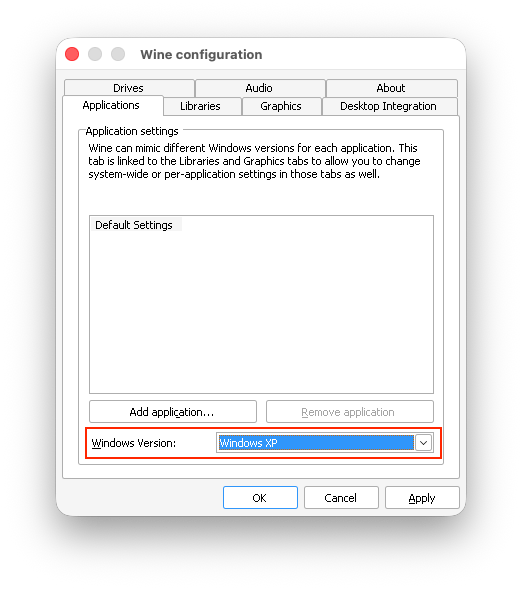
Set the Windows version to « Windows XP » for more stability (Fox is a 32-bit application running with very old libraries…). To do so run:
WINEPREFIX=~/foxweiqi winecfg
and select « Windows XP », then OK.
You can try if the installation worked by running:
WINEPREFIX=~/foxweiqi wine ~/foxweiqi/drive_c/Program\ Files\ \(x86\)/foxwq/foxwq/foxwq.exe
# For Apple Silicon Macs (2020+) run this one instead to avoid startup crashes:WINE_DISABLE_FAST_STARTUP=1 WINEPREFIX=~/foxweiqi wine ~/foxweiqi/drive_c/Program\ Files\ \(x86\)/foxwq/foxwq/foxwq.exe
This should open the Fox Weiqi program.
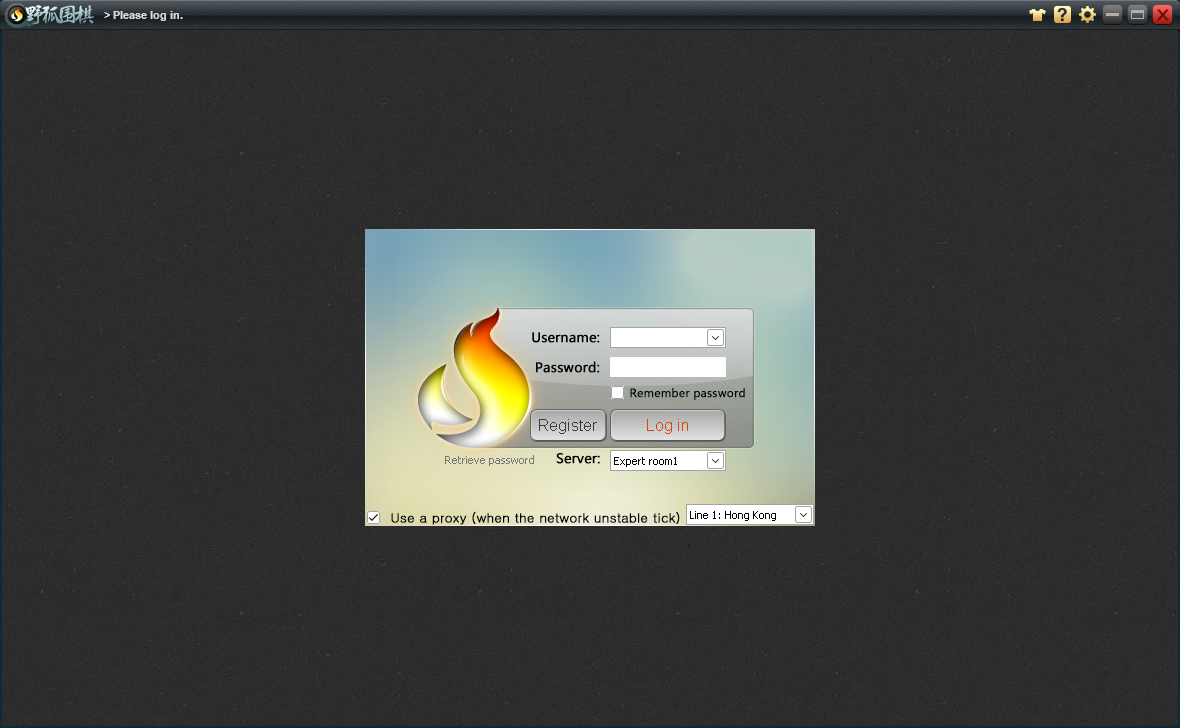
From here you can login, play fox, and launch it through the command line with (same command as above):
WINEPREFIX=~/foxweiqi wine ~/foxweiqi/drive_c/Program\ Files\ \(x86\)/foxwq/foxwq/foxwq.exe
# For Apple Silicon Macs (2020+) run this one instead to avoid startup crashes:WINE_DISABLE_FAST_STARTUP=1 WINEPREFIX=~/foxweiqi wine ~/foxweiqi/drive_c/Program\ Files\ \(x86\)/foxwq/foxwq/foxwq.exe
However, we will create a more friendly « App » to reside in our Applications folder, see below.
Creating an App for Fox Weiqi on MacOS
First, we need to locate where Wine resides, because this location is different between older (intel) Macs and newer (ARM) Macs. Run the following command:
which wine
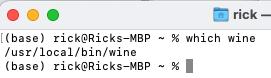
For me this is located under « /usr/local/bin/wine », but this could be another path like « /opt/homebrew/bin/wine ». We will create an « App » with the « Automator » program. For this open your search bar with « cmd+space » or click the looking glass icon and type « Automator » and launch it:
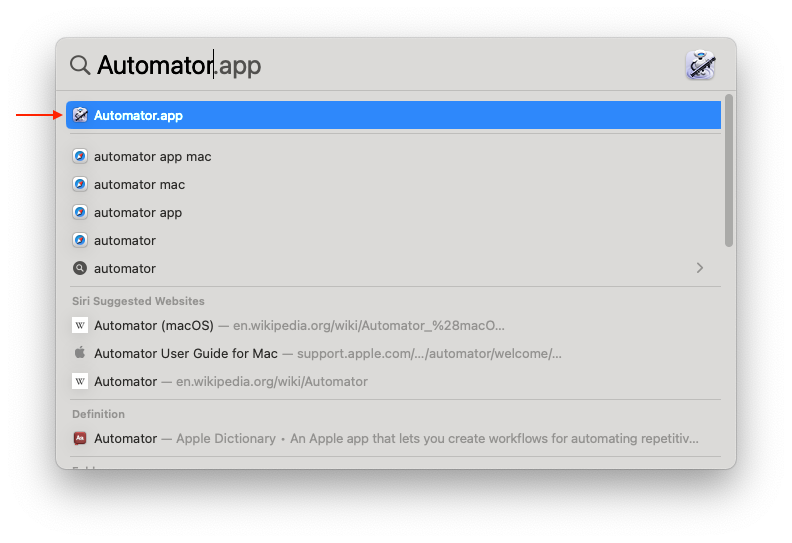
In Automator select new application
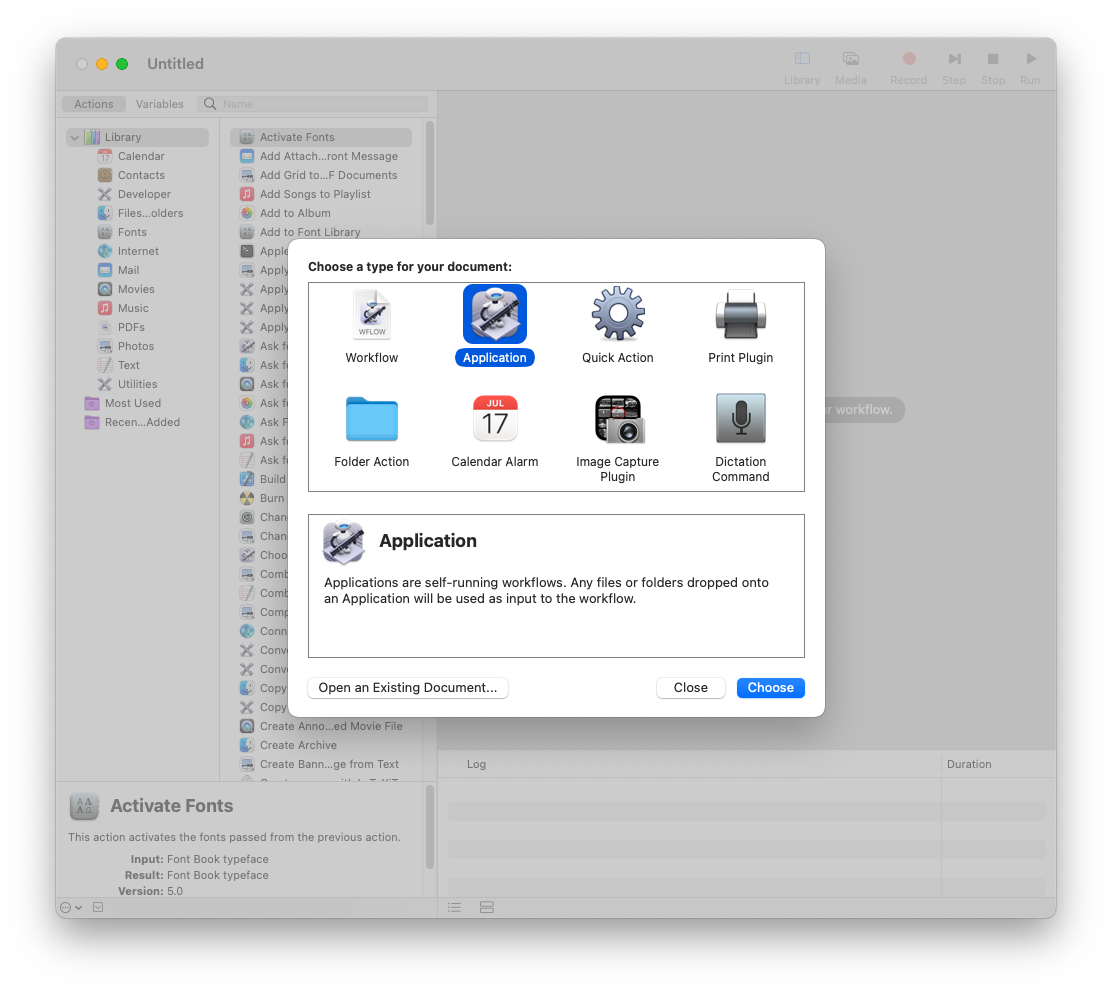
From the menu add “Run Shell Script”
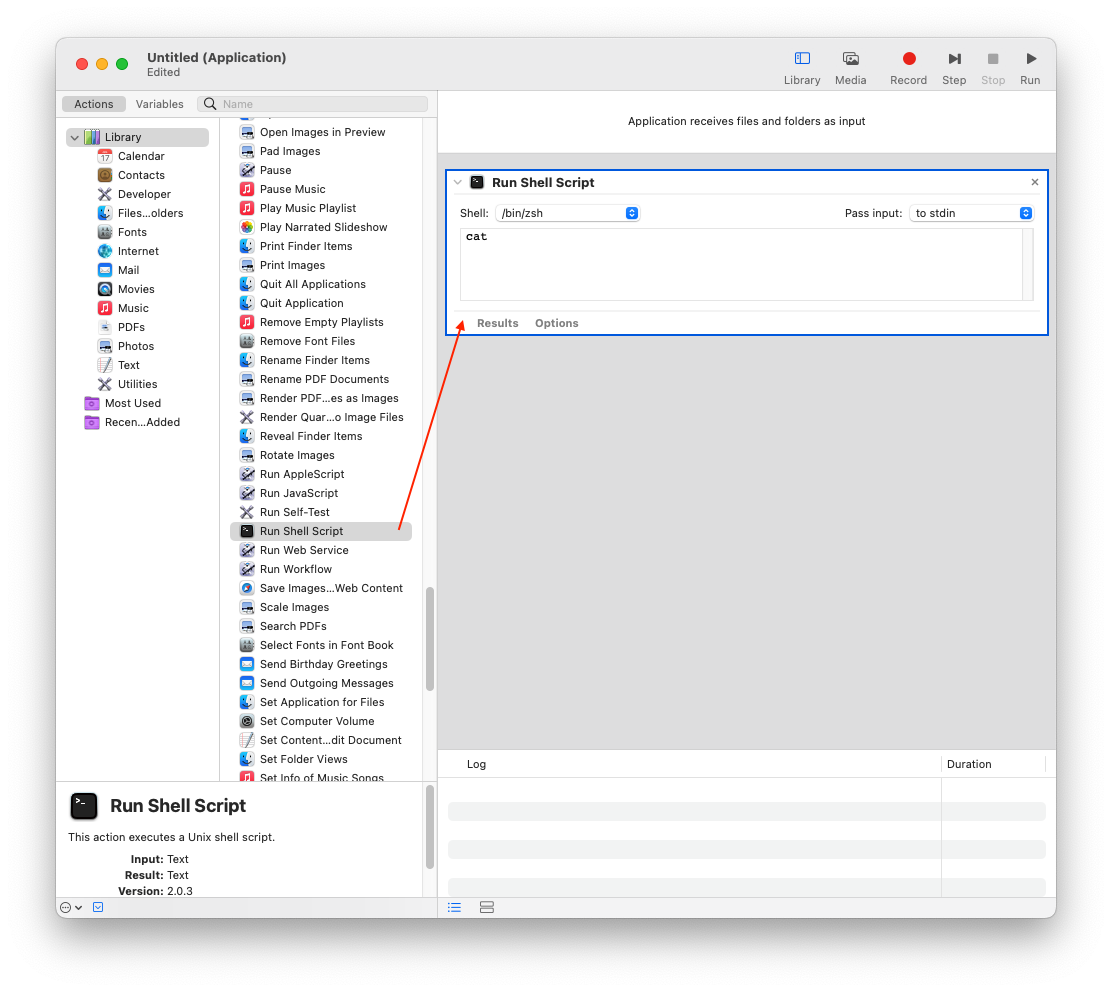
Fill the wine command (one of the two below, not both).
WINEPREFIX=~/foxweiqi wine ~/foxweiqi/drive_c/Program\ Files\ \(x86\)/foxwq/foxwq/foxwq.exe
# For Apple Silicon Macs (2020+) run this one instead to avoid startup crashes:WINE_DISABLE_FAST_STARTUP=1 WINEPREFIX=~/foxweiqi wine ~/foxweiqi/drive_c/Program\ Files\ \(x86\)/foxwq/foxwq/foxwq.exe
where you will replace « wine » by the full path to wine we located above with « which wine », here “/usr/local/bin/wine” to launch Fox, and test it by clicking « Run » (see image below).
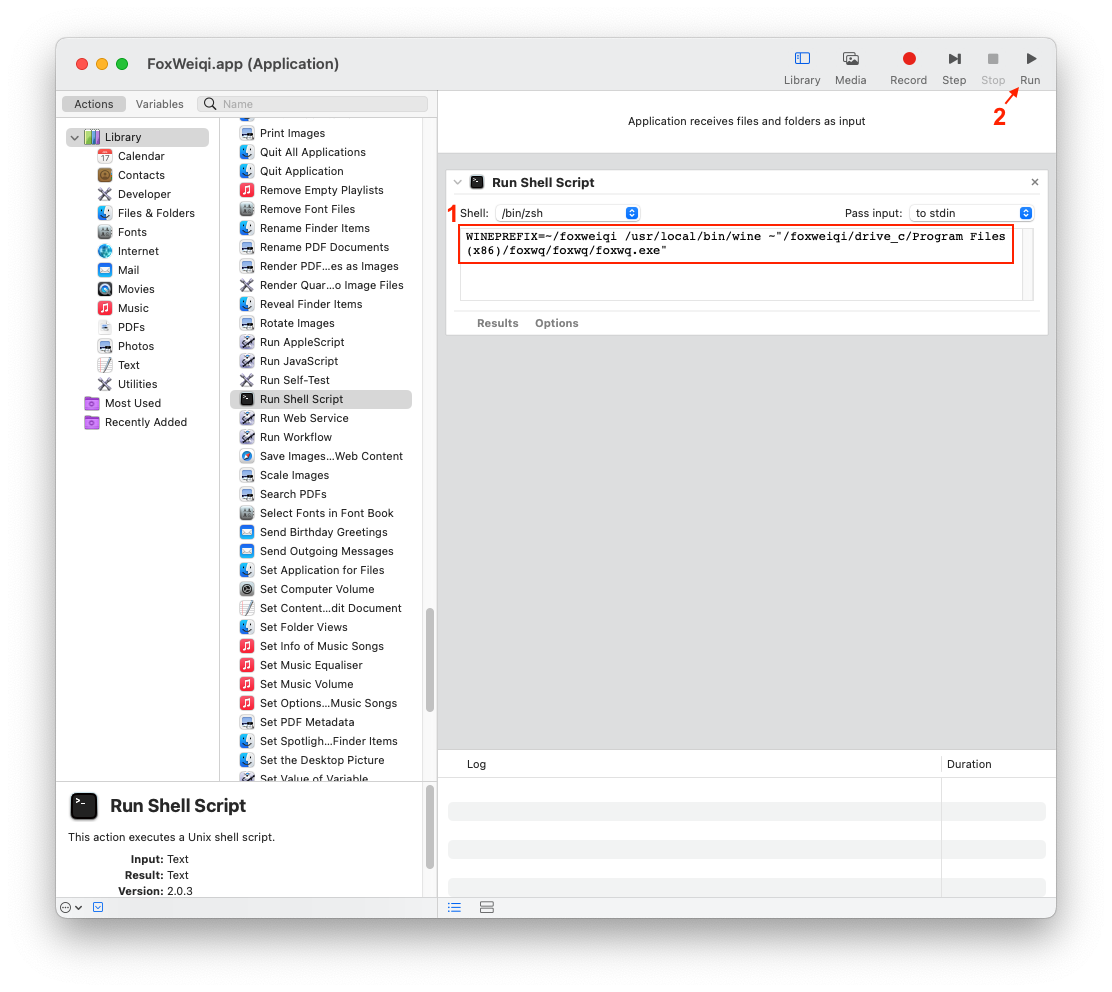
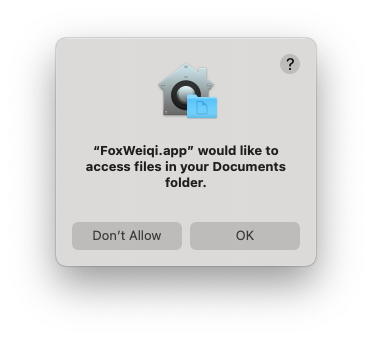
If you receive a message asking to access your folder, accept it. If fox asks for microphone access you can safely deny it.
Save (menu File->Save) the application to your “Applications” folder
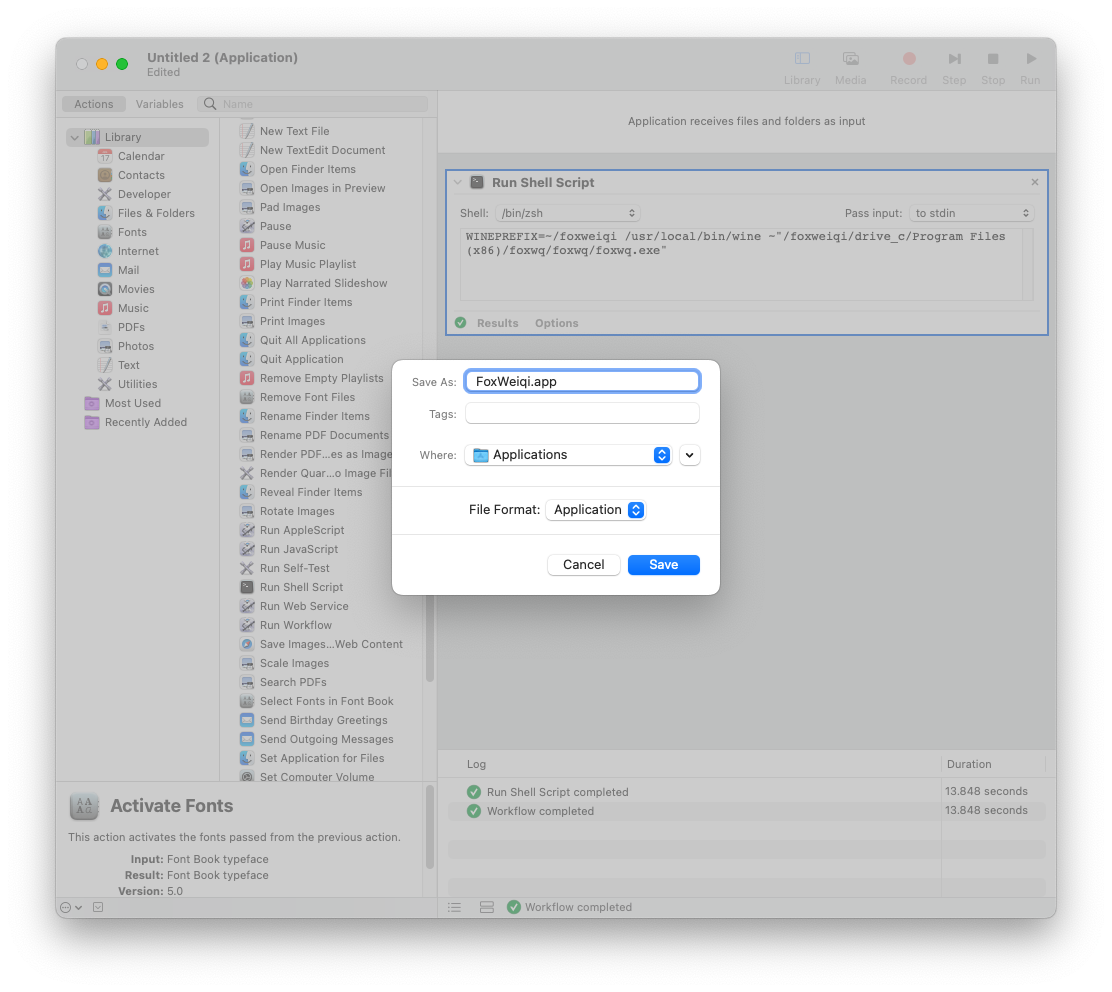
You will now find it in your Applications folder and menu, you can quit Automator. You can try launching the app to make sure everything is working. It might take some time to launch and ask to access your directory, allow it.

To change the icon, first, get an icon you like e.g., in « ~/foxweiqi/drive_c/Program Files (x86)/foxwq/foxwq/headimg », then copy it (cmd+c).
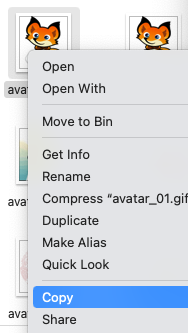
Open the Applications folder in Finder and right click on the app, to select « Get Info ».
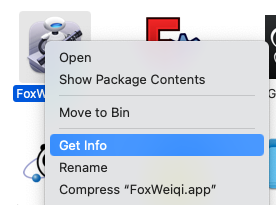
Click on the icon and paste the new one with « cmd+v ».
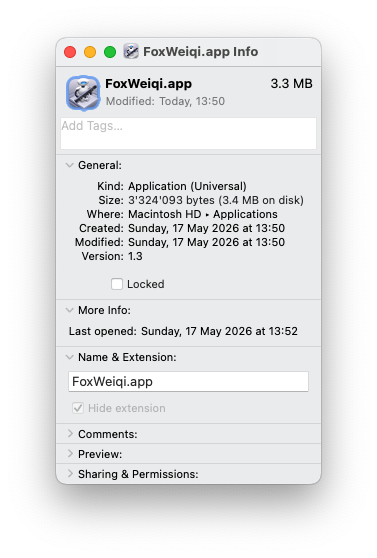
You should now have a Fox icon which looks much better than the Automator default icon.
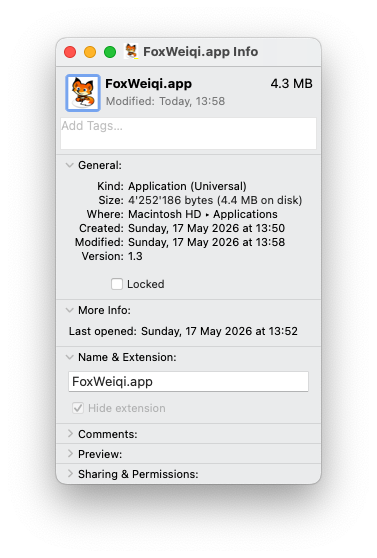
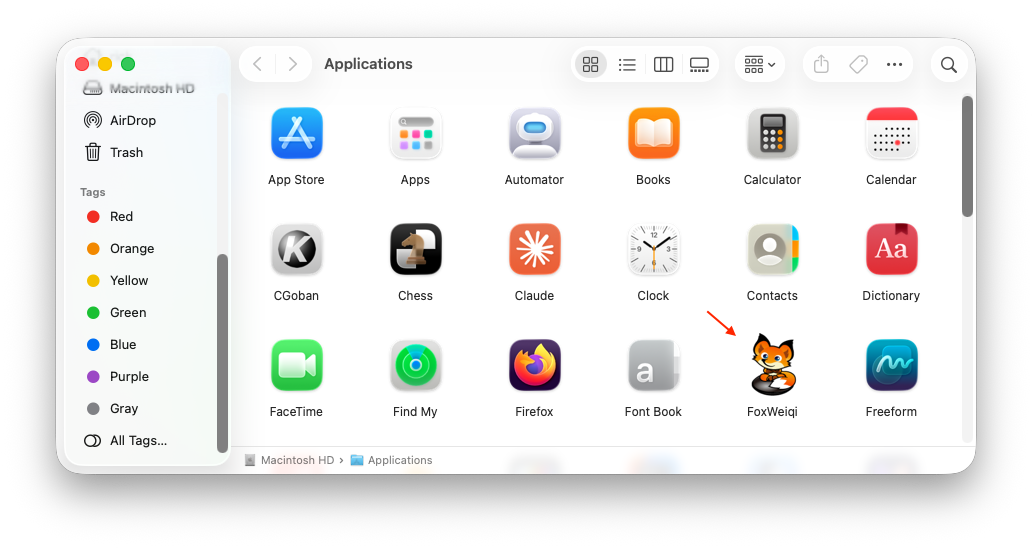
You’re all done, have fun playing Go on Fox!
Issues with Wine/Fox on MacOS
1. Some fonts don’t display correctly, I don’t have a solution for this, please let me know if you have one.
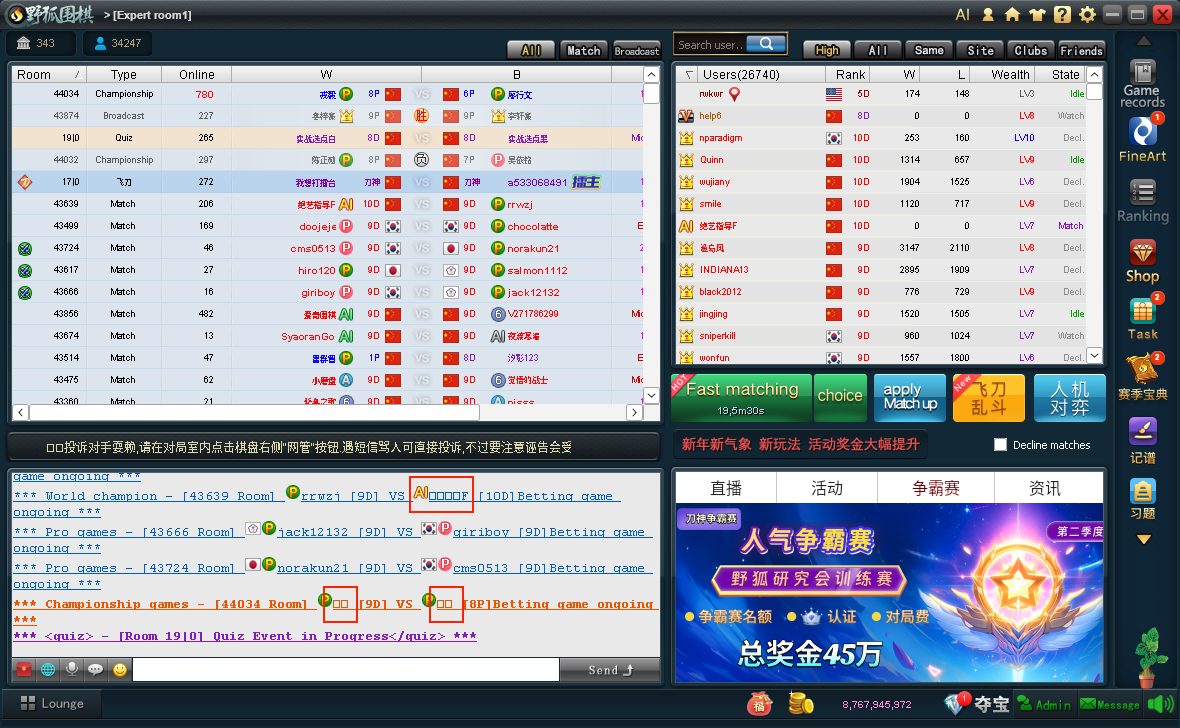
2. When maximizing the window with the button it goes beyond the screen border, therefore, resize manually.
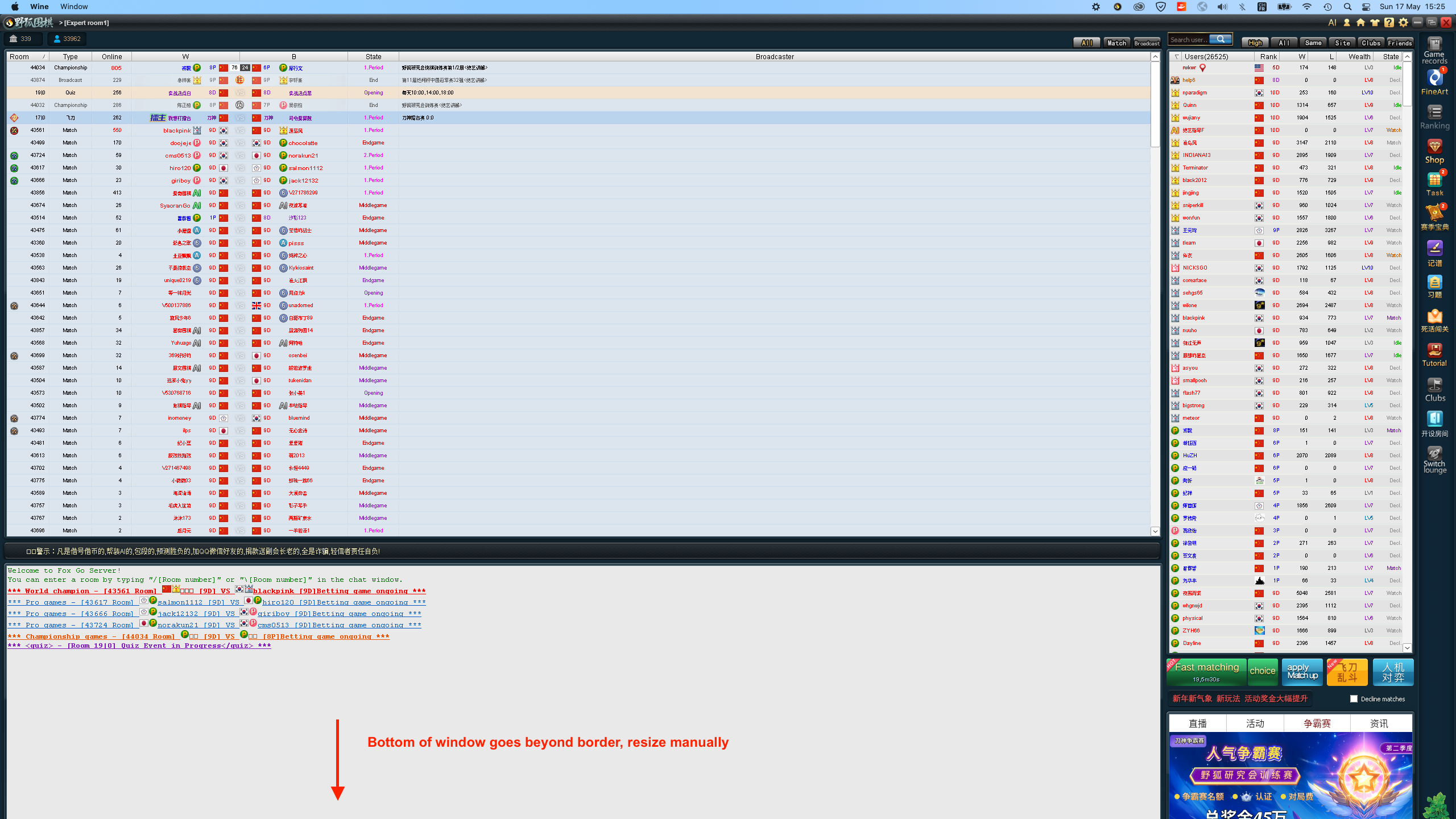
So, don’t use the button, resize manually…

3. On Apple Silicon Macs (2020+) there are issues with the Fox web plugin (crashes very often), therefore it had to be disabled and so the store and bottom right announcement panel don’t work. If you need access to the store you can restore it with the following command:
cp ~/foxweiqi/drive_c/Program\ Files\ \(x86\)/foxwq/foxwq/node.dll.bak \
~/foxweiqi/drive_c/Program\ Files\ \(x86\)/foxwq/foxwq/node.dll
Then apply the fix again to avoid the crashes:
# Only for Apple Silicon Macs (2020+)
cp ~/foxweiqi/drive_c/Program\ Files\ \(x86\)/foxwq/foxwq/node.dll \
~/foxweiqi/drive_c/Program\ Files\ \(x86\)/foxwq/foxwq/node.dll.bak
# Then (also only for Apple Silicon Macs (2020+)
truncate -s 0 ~/foxweiqi/drive_c/Program\ Files\ \(x86\)/foxwq/foxwq/node.dll
4. On Apple Silicon Macs (2020+) It still crashes on startup from time to time, just relaunch the app. It should be fine in game. If it crashes you can relaunch and it will resume your game.
Have fun playing on Fox!